Free online GIF maker
Funny GIF Maker
Make funny GIFs with captions, meme text, and smaller file sizes. Choose a funny template, upload your own GIF, add text, compress it, and download it for sharing.
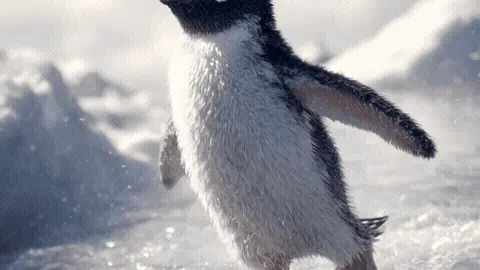
Selected template
Funny GIFs Template 303785
Editor
Edit text and preview
Text styleExpand to edit font size, color, and position.
Caption
Generate
Published templates
Choose an editable GIF template
Guide
How to use this funny gif maker tool
How to Add Captions to a Funny GIF
Start with a simple reaction or abstract template, then write one caption that explains the moment. Funny GIF captions should be short enough to read before the loop restarts. A caption that needs a full paragraph usually works better as a regular image or post.
Caption Mode vs. Meme Mode: What's the Difference
Caption Mode is best for one punchline near the bottom of the GIF. Meme Mode uses top text and bottom text in the classic format, which works well for setup and payoff. Use Meme Mode when the joke needs two beats.
Top Text and Bottom Text: The Classic Meme GIF Format
Put the situation at the top and the reaction at the bottom. Keep both lines tight and readable. Impact-style text with a dark stroke helps the caption stay visible over busy motion.
Best Reaction GIF Ideas for Chats and Social Posts
Work jokes, loading states, awkward moments, mock errors, and mood captions are safer than celebrity or movie clips. Abstract emoji and simple graphic templates reduce copyright and context risk while still feeling fun.
How to Compress a Funny GIF Without Losing the Joke
The caption must remain readable after compression. Reduce dimensions and FPS before heavy quality loss. If the joke depends on tiny facial detail, use a shorter GIF or crop closer before compressing.
Write a Caption That Lands Before the Loop Restarts
A funny GIF works when viewers can understand the setup and punchline during one loop. Use a short top line for context and a short bottom line for the reaction, or use a single caption when the image already supplies the setup. Preview the timing instead of judging only the first frame. If the text takes longer to read than the animation takes to loop, remove extra words rather than shrinking the font.
Choose Text Placement Around Faces and Motion
Keep captions away from faces, gestures, and the object that creates the joke. Top and bottom placement is predictable, but a centered caption may work when the important action happens near an edge. Watch for changing backgrounds that reduce contrast during later frames. A dark outline and generous spacing make meme text easier to follow without covering the expression that gives a funny GIF its meaning.
Prepare a Funny GIF for Its Destination
Group chats reward short loops and immediately readable reactions. Forum posts may allow a wider file when small details matter. Email and documentation need restrained file sizes so the animation does not slow the page. Download the edited result, check its exact size, and test it at the destination display width. Stronger compression is acceptable only while the caption, visual expression, and comic timing remain clear.
Check Whether the Joke Works Without Extra Context
Show the preview at its normal sharing size and read it as if it arrived without an explanation. The caption, action, and loop should communicate one recognizable reaction. If the viewer needs a paragraph of background, simplify the text or choose a clearer template. Standalone clarity also makes the GIF easier to reuse, while specific names or private references should be kept for the intended conversation only.
Use cases
Designed for real sharing moments
Reaction replies
Use a short caption to answer a chat without relying on copyrighted movie or celebrity clips.
Work memes
Use top and bottom text for meeting, deadline, loading, or motivation jokes.
Social posts
Compress the final GIF so the caption loads quickly and stays readable in feeds.
Funny GIF Maker Source Check
funny gif maker begins with a published repository template or an animated GIF selected from the current device. funny gif maker works best when the selected source is the file you actually intend to inspect or edit, rather than an earlier export whose quality has already changed.
Before using funny gif maker, confirm that the file opens normally and contains the animation or image you expect. This simple source check prevents an unrelated, incomplete, or previously damaged file from confusing the result.
Use funny gif maker for the current file, verify the funny gif maker result, and return to funny gif maker from the original whenever another pass is necessary.
Funny GIF Maker Control Choices
funny gif maker provides template choice, editable text fields, text placement, preview, compression, and download actions. Use the controls that match the current job, then change one setting at a time when you need to understand which choice changed the output.
A deliberate funny gif maker workflow is easier to review than several simultaneous changes. Keep the source available, note the chosen settings, and compare the next result with the previous download before making another adjustment.
Use funny gif maker for the current file, verify the funny gif maker result, and return to funny gif maker from the original whenever another pass is necessary.
Funny GIF Maker Result Review
funny gif maker reports a personalized animated GIF that can be previewed and downloaded. Treat that displayed information as the result of the current run instead of assuming that a preset name guarantees a particular size, dimension, frame rate, or format.
After funny gif maker finishes, save the output and open it outside the page. Watch a complete animation loop when applicable, read any text, and verify that the downloaded file still serves its intended purpose.
Use funny gif maker for the current file, verify the funny gif maker result, and return to funny gif maker from the original whenever another pass is necessary.
Funny GIF Maker Detail Check
funny gif maker should preserve the information a viewer needs. For interface recordings that may be labels and cursor movement; for greetings it may be the message; for reactions it may be expression and timing.
Review funny gif maker at the destination display size. A small preview can hide soft lettering, rough edges, banded colors, missing frames, or timing changes that become noticeable in a chat, email, document, or web page.
Use funny gif maker for the current file, verify the funny gif maker result, and return to funny gif maker from the original whenever another pass is necessary.
Funny GIF Maker and Browser Privacy
funny gif maker performs this browser workflow on the current device. The selected file is not uploaded to gifcompressor.net for the tool operation, which is useful for drafts, personal media, and internal material.
Local funny gif maker processing still uses the browser's memory and processor. Keep the tab open while work is active, avoid starting several demanding jobs together, and respond to a displayed error instead of assuming processing continued.
Use funny gif maker for the current file, verify the funny gif maker result, and return to funny gif maker from the original whenever another pass is necessary.
Funny GIF Maker Limits
funny gif maker cannot remove the limits of the source or destination. Long text, busy motion, low contrast, and large source dimensions can reduce readability or increase the final file size. A usable result depends on both the file and the requirements of the place where it will be shared.
If funny gif maker produces an unsuitable result, return to the untouched source. Choose a more appropriate control, shorten or simplify the source when the tool supports that workflow, or use another format when the destination accepts it.
Funny GIF Maker Sharing Check
funny gif maker is complete only after the downloaded file has been checked. Confirm its measured properties, open it in a normal viewer, and make sure the entire message, subject, or action remains understandable.
Test the funny gif maker result in the receiving service when possible. Upload rules and display sizes belong to that service, so its final acceptance and presentation are more meaningful than an estimate made before the file leaves this page.
Funny GIF Maker Repeat Workflow
funny gif maker comparisons are clearest when every candidate starts from the same original. Re-encoding a downloaded result can stack palette, resizing, frame, or quality changes and make the cause of visible damage harder to identify.
Keep descriptive filenames for each funny gif maker result and retain the source separately. This makes it possible to compare settings, recover detail, and create another delivery copy later without treating a compressed or converted file as the master.
Use the funny gif maker preview, downloaded animation, and destination display together when deciding whether the greeting or caption is ready.
FAQ
Common questions
Can I add a caption to a GIF?
Yes. Funny GIF Maker includes Caption Mode for a single caption and Meme Mode for top and bottom text.
What is Meme Mode?
Meme Mode lets you add top text and bottom text in a classic meme-style layout.
Can I upload my own funny GIF?
Yes. You can upload a GIF and add captions over the preview.
Why avoid celebrity or movie GIF templates?
They can create copyright, likeness, and context risks. This page focuses on safer abstract, emoji, and text-based templates.
What font works best for meme GIFs?
Impact-style text with a dark stroke is usually easiest to read.
Can I make a reaction GIF?
Yes. Choose a reaction-style template and write a short caption that fits the chat moment.
How do I keep the joke readable?
Use fewer words, strong contrast, and avoid placing text over the busiest part of the animation.
Can I compress a funny GIF?
Yes. Compress after adding text so the caption stays part of the final file.
Can I use it without software?
Yes. The editor runs in the browser.
Is the page a GIF gallery?
No. It is a GIF maker focused on editing, captions, compression, and download.
Related tools
Related GIF Maker Tools
Choose the next tool that matches the file size, format, or editing result you need.
Happy Birthday GIF MakerCreate a birthday GIF with name, age, message, and compression options.Good Morning GIF MakerMake a good morning GIF with a name, greeting, template, and download flow.Compress GIF to 2MBCompress a GIF toward 2MB with automatic retries and a measured target check.GIF CompressorReduce GIF file size with width, FPS, and quality controls.