Step-by-step guide
How to Compress a GIF
A practical tutorial for reducing animated GIF file size with width, FPS, quality, and privacy-friendly browser settings.
Start With the Real Goal
Before changing any setting, decide where the GIF will be used. A GIF for Discord needs to fit an upload limit and preview quickly in chat. A GIF for email needs to stay comfortably below attachment limits and load for mobile readers. A GIF for a website needs to be far smaller because every visitor downloads it. A GIF for documentation needs readable text, even if the file is a little larger. When the goal is clear, compression becomes a series of controlled tradeoffs instead of random trial and error.
Animated GIFs become large because they contain many frames. Each frame has dimensions, color information, and changes from the previous frame. A ten-second screen recording at desktop size can contain hundreds of frames, which is why it may remain large even after one compression pass. The best results usually come from combining several small decisions: trim unnecessary time, crop empty areas, resize width, lower frame rate, and then apply a compression level that still preserves the message of the animation.
Choose Width Before Quality Loss
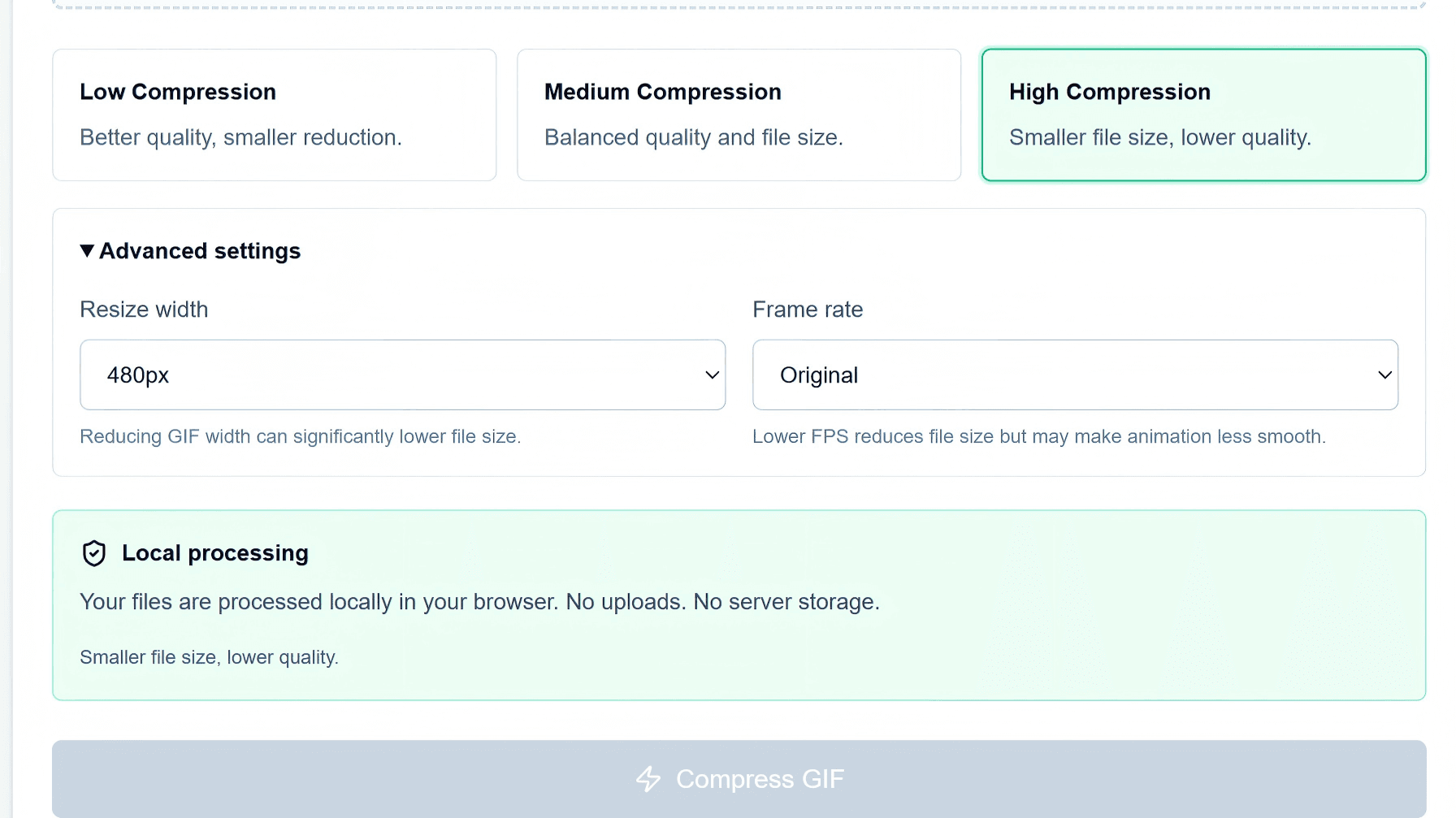
Width is usually the cleanest file-size lever. A 1200px GIF contains far more pixel data than a 480px GIF, and that difference applies to every frame. If the GIF is a reaction, meme, or simple loop, 480px is often enough. If the target is strict, such as 1MB, 320px may be required. If the GIF contains interface labels or small captions, try 640px first and compare the result before shrinking further.
This matters because aggressive color compression can make edges noisy and text rough, while resizing often looks more natural. If you can remove pixels that the viewer does not need, you preserve more of the important detail. For screen recordings, crop around the useful window before resizing. Cropping removes irrelevant desktop space, while resizing shrinks everything. Using both together gives the compressor less work and keeps the final GIF more readable.
Before and After GIF Size Example
These sample targets show how width, FPS, and compression level can change animated GIF size. Actual results depend on duration, colors, and motion.
Original screen recording GIF
Full width, original FPS
480px + 10 FPS + medium compression
Good for email and web examples
320px + 8 FPS + high compression
Useful for strict 1MB targets
Use FPS as the Second Lever
Frame rate controls how many images appear each second. Lower FPS means fewer frames and usually a smaller file. If the original GIF is 24 FPS or 30 FPS, reducing it to 15 FPS can save a lot while keeping motion reasonably smooth. For chat and email, 10 FPS is often a good compromise. For tiny targets, 8 FPS may be necessary, especially when the animation is short and simple.
Do not reduce FPS blindly. Cursor movement, drawing steps, and tutorial animations can become confusing when too many frames are removed. If motion becomes choppy, restore some FPS and reduce width instead. If the animation is mainly a reaction or visual punchline, viewers usually tolerate lower FPS better than blurry text. The right answer depends on what people need to notice.
GIF Compression Settings Decision Flow
Need readable UI text?
Start at 640px, medium compression, 10-15 FPS.
Need a chat reaction?
Use 480px, 10 FPS, medium or high compression.
Need under 1MB?
Try 320px, 8 FPS, high compression, and trim first.
Need website speed?
Aim for 1-3MB and compare GIF against WebP or MP4.
Pick a Compression Level
Low compression protects quality but may not save enough size. Medium compression is the best starting point for most GIFs because it balances quality and reduction. High compression is useful when you must fit a strict limit, but it can introduce visible artifacts. A good workflow is to try medium first, check the output size, then move to high only if the file is still too large.
If the GIF contains brand colors, product UI, or small text, stay conservative and reduce width or FPS before pushing compression too hard. If it is a meme, reaction, or quick social reply, stronger compression is usually fine. Download multiple versions and compare them in the place where they will be used. A GIF that looks acceptable in a small Discord preview may not look acceptable in a wide documentation article.
Use a No-Upload Workflow
A browser-based GIF compressor is helpful because the source file stays on your device. That is important for private chats, internal dashboards, support screenshots, unreleased product screens, and client materials. You can upload the GIF into the tool, test several settings, download the best result, and refresh the page to clear the selected file from the interface.
The final checklist is simple: confirm the target size, confirm that important text is readable, confirm that the key motion still makes sense, and choose the smallest version that meets those conditions. Good GIF compression is not about crushing the file at any cost. It is about removing the pixels, frames, and color detail that do not matter for the destination.
Ready to compress your GIF?
Use the free browser-based GIF compressor to test width, FPS, and quality settings without uploading your file.
Compress GIF online with no upload